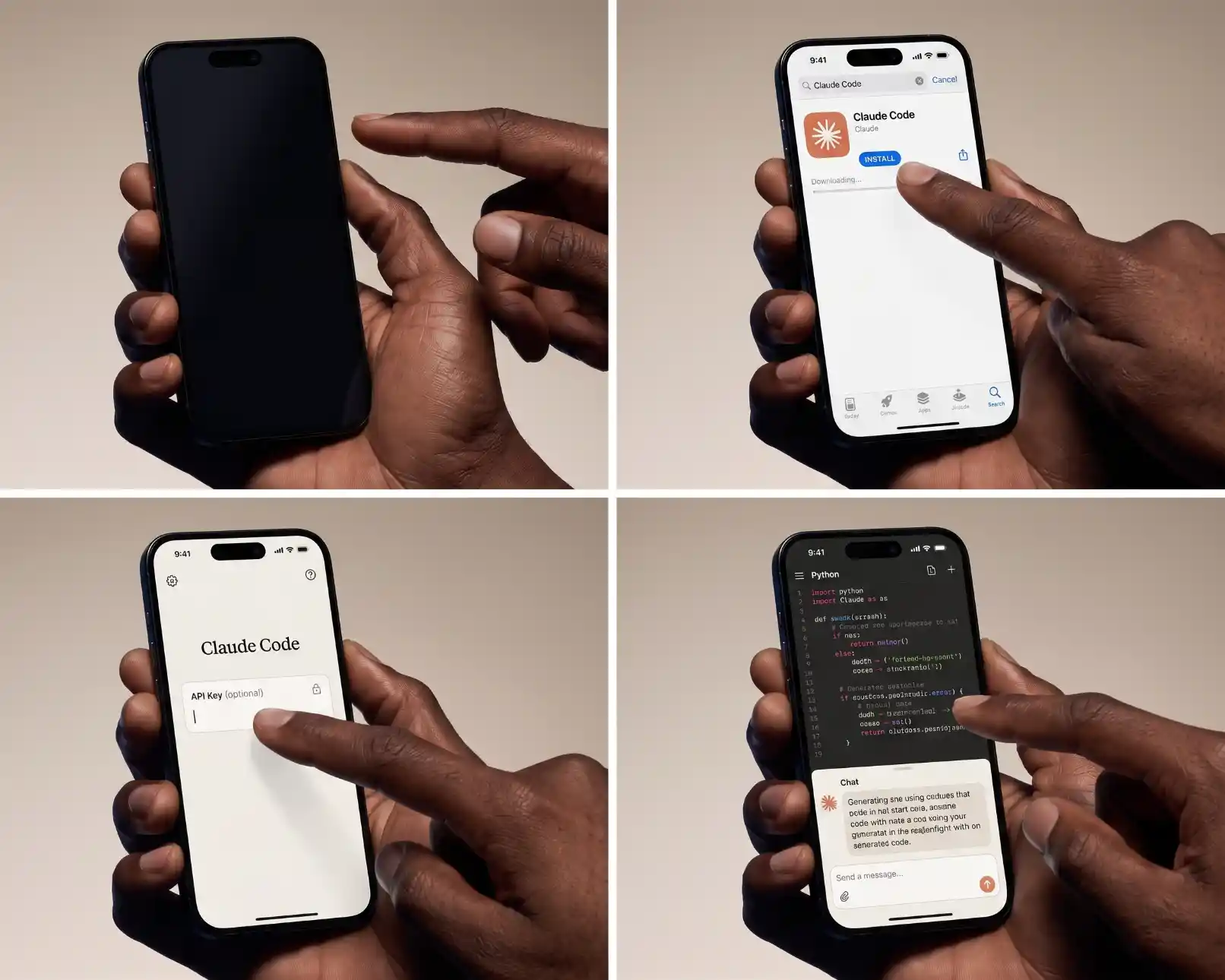
How to Install and Use Claude Code: A Beginner Guide
Quick answer: To install Claude Code, run the official installer in your terminal: curl -fsSL https://claude.ai/install.sh | bash on macOS, Linux or WSL, or irm https://claude.ai/install.ps1 | iex in Windows PowerShell. Then open a terminal in your project folder, type claude, and log in with a Claude Pro, Max, Team, Enterprise or Console (API) account. The free Claude plan does not include Claude Code. Check the install with claude --version or claude doctor.
Key takeaways
- Claude Code is Anthropic’s AI coding agent that works in your terminal, IDE, desktop app and browser.
- The native installer is the recommended method and updates itself automatically.
- Homebrew, WinGet, Linux package managers and npm are alternatives, but most do not auto-update by default.
- You need a paid Claude plan or a Console account with API billing; the free plan does not include it.
- Start each project with
/initto create a CLAUDE.md file with project instructions. - Review changes, use git, and keep permission prompts on until you trust your setup.
Commands in this guide follow Anthropic’s official Claude Code documentation at the time of writing. Installers change, so check the official setup page if a command fails.
What is Claude Code?
Claude Code is an agentic coding tool from Anthropic. Instead of copying code between a chat window and your editor, you run Claude Code inside your project. It can read your files, search the codebase, run commands and tests, edit multiple files, use git, and explain what it is doing, asking for permission before actions that change things.
You can use it in several ways:
- Terminal (CLI): the original and most flexible way; type
claudein any project folder. - IDE extensions: VS Code (and forks such as Cursor) and JetBrains IDEs.
- Desktop app: a graphical app for macOS, Windows and Linux, useful if you are not comfortable with the terminal.
- Web: Claude Code on the web runs tasks in cloud environments connected to your repositories.
It is useful for developers, but also for site owners and bloggers who want to build tools, fix WordPress issues or automate tasks with help. See what vibe coding is for the wider trend.
System requirements
| Requirement | Details |
|---|---|
| Operating system | macOS 13.0+, Windows 10 1809+ or Windows Server 2019+, Ubuntu 20.04+, Debian 10+, Alpine Linux 3.19+ |
| Hardware | 4 GB+ RAM, x64 or ARM64 processor |
| Network | Internet connection required |
| Shell | Bash, Zsh, PowerShell or CMD |
| Location | An Anthropic-supported country |
| Account | Claude Pro, Max, Team or Enterprise, or an Anthropic Console account (or a supported cloud provider such as Amazon Bedrock) |
You do not need Node.js for the native installer. The npm method requires a recent Node.js version (Node.js 22 or later for current releases).
How to install Claude Code on Mac, Linux or WSL
- Open the Terminal app (on Mac, press Cmd+Space and type “Terminal”).
- Paste and run the installer:
curl -fsSL https://claude.ai/install.sh | bash - When it finishes, close and reopen the terminal if the
claudecommand is not found yet. - Check the install:
claude --version
Alternatively, on a Mac with Homebrew:
brew install --cask claude-codeThe claude-code cask follows the stable channel (typically about a week behind, skipping releases with major regressions), while claude-code@latest follows the latest releases. Homebrew installs do not auto-update; run brew upgrade claude-code periodically.
How to install Claude Code on Windows
You can run Claude Code natively on Windows or inside WSL (Windows Subsystem for Linux). Native Windows is simplest for Windows projects; WSL 2 suits Linux toolchains and supports sandboxed command execution.
Option 1: Windows PowerShell (recommended for most users)
- Open PowerShell from the Start menu. Your prompt starts with
PS C:\Users\YourName>. You do not need to run it as Administrator. - Run:
irm https://claude.ai/install.ps1 | iex - Close and reopen PowerShell, then run
claude --version.
Option 2: Windows Command Prompt (CMD)
curl -fsSL https://claude.ai/install.cmd -o install.cmd && install.cmd && del install.cmdA common mix-up: if you see “The token ‘&&’ is not a valid statement separator”, you are in PowerShell, so use the PowerShell command. If you see “‘irm’ is not recognized”, you are in CMD, so use the CMD command.
Option 3: WinGet
winget install Anthropic.ClaudeCodeWinGet installs do not auto-update by default; run winget upgrade Anthropic.ClaudeCode from time to time.
Git for Windows (recommended)
Installing Git for Windows is optional but recommended. It lets Claude Code use Git Bash for shell commands; without it, Claude Code uses PowerShell instead. You will also want git anyway to track and undo changes.
Option 4: WSL
Open your WSL distribution (for example Ubuntu) and run the Linux installer inside it. Then launch claude from the WSL terminal, not from PowerShell or CMD.
Other installation methods
npm
npm install -g @anthropic-ai/claude-codeThe npm package installs the same native binary. Do not use sudo npm install -g, which can cause permission and security problems. To upgrade, run npm install -g @anthropic-ai/claude-code@latest.
Linux package managers
Anthropic publishes signed apt (Debian and Ubuntu), dnf (Fedora and RHEL) and apk (Alpine) repositories. These are good for managed servers; follow the official setup page for the repository and key-verification steps. They update through your normal system upgrades.
Installing a stable or specific version
The native installer can install the stable channel instead of the latest release:
curl -fsSL https://claude.ai/install.sh | bash -s stableOn Windows PowerShell, the equivalent is:
& ([scriptblock]::Create((irm https://claude.ai/install.ps1))) stableVerify the installation
Run:
claude --versionA working install prints a version number followed by “(Claude Code)”. For a fuller health check, run:
claude doctorIt reports installation health, settings errors, the auto-update status and suggested fixes, without starting a session.
Log in and choose how you pay
Start Claude Code in any folder by typing claude. The first time, it opens your browser to log in. Your options:
| Account type | How billing works | Best for |
|---|---|---|
| Claude Pro or Max subscription | Included usage within your plan’s limits | Individuals who also use the Claude app |
| Team or Enterprise plan | Managed by your organization | Companies with admin controls |
| Anthropic Console (API) | Pay per use through API credits | Developers who want usage-based billing |
| Cloud providers | Billed through Amazon Bedrock, Google Cloud or Microsoft Foundry | Organizations already on those platforms |
The free Claude plan does not include Claude Code. Plans and limits change, so check Anthropic’s pricing page for current details. If you set an ANTHROPIC_API_KEY environment variable, Claude Code asks you once to approve that key instead of opening the browser. Keep API keys private: never paste them into chats, commit them to git or share them in screenshots.
Your first Claude Code session
- Open your project folder in the terminal: for example
cd my-website. Claude Code works on the folder you start it in. - Start it: type
claudeand press Enter. - Ask for an overview: “Explain what this project does and how it is structured.” This is a safe first task that changes nothing.
- Create project instructions: type
/init. Claude Code analyzes the project and creates aCLAUDE.mdfile with key commands, structure and conventions. Review and edit it. - Try a small change: “Add a footer link to the privacy page on every page.” Claude Code proposes edits and asks permission before changing files or running commands.
- Review the result: check the diff, test the site, and commit with git when you are happy.
Useful Claude Code commands
Inside a session, commands start with a slash. Type / to see the full list; common ones include:
| Command | What it does |
|---|---|
/help |
Shows available commands and help |
/init |
Creates a CLAUDE.md file with project instructions |
/clear |
Starts a fresh conversation in the same project |
/compact |
Summarizes the conversation to free up context |
/model |
Switches the Claude model |
/permissions |
Views and manages which tools and commands are allowed |
/mcp |
Manages MCP server connections to other tools and services |
/config |
Opens settings such as theme and update channel |
From your normal terminal, claude update installs the latest version immediately, and claude doctor runs diagnostics. You can also start with a task directly, for example claude "explain the build process".
What is CLAUDE.md and why it matters
CLAUDE.md is a Markdown file in your project that Claude Code reads at the start of each session. Think of it as a briefing for a new team member. Good things to include:
- How to build, run and test the project
- Folder structure and where key files live
- Coding style and naming conventions
- Things to avoid, such as “never edit files in /vendor” or “do not deploy without asking”
- Project-specific facts, such as which pages are live or which files are generated
Keep it short and accurate. A clear CLAUDE.md saves time in every session and reduces mistakes.
Permissions and safety
By default, Claude Code asks before editing files or running commands. That is a useful safety net while you learn. Recommended habits:
- Use git: commit before big changes so you can review diffs and undo anything.
- Read before approving: check what a command does, especially anything that deletes, deploys or installs packages.
- Allow only safe, repeated commands: such as running tests, using
/permissions. - Keep secrets out: do not paste passwords or API keys into prompts; use environment variables or secret managers.
- Be careful with untrusted content: instructions hidden in web pages, issues or files can try to steer the agent. Stay alert when Claude Code reads external content.
- Use sandboxing where available: on macOS, Linux and WSL 2, sandboxed command execution adds another layer of protection.
For background on how agents act and why guardrails matter, see what AI agents are.
Using Claude Code in VS Code, JetBrains and the desktop app
- VS Code: install the Claude Code extension from the marketplace to get a graphical panel, inline diffs and file references while you work.
- JetBrains IDEs: install the Claude Code plugin for IntelliJ, PyCharm, WebStorm and others.
- Desktop app: the Claude desktop app includes a Code tab, which lets you run Claude Code sessions with a visual interface, preview changes and manage several sessions.
All of these share the same settings folder, so your configuration and CLAUDE.md files work across them.
Fixing common installation problems
| Problem | Likely cause | Fix |
|---|---|---|
| “claude: command not found” after installing | The terminal has not picked up the new PATH | Close and reopen the terminal; check that the install folder (for example ~/.local/bin) is on your PATH; run the installer again |
| “‘irm’ is not recognized” | Running the PowerShell command in CMD | Use the CMD command, or open PowerShell |
| “The token ‘&&’ is not a valid statement separator” | Running the CMD command in PowerShell | Use the PowerShell command |
| “syntax error near unexpected token ‘<‘” or a 403 error | The download returned a web page instead of the script, often because of network filtering, a proxy or region | Check your network and proxy, confirm your country is supported, then see the official install troubleshooting page |
| npm permission errors | Global npm folder not writable | Use the native installer instead, or fix npm’s global folder; never use sudo with npm |
| Two versions installed | Old npm install plus new native install | Run claude doctor, then remove the extra installation |
| Login fails or loops | Wrong account type, or free plan | Log in with a Pro, Max, Team, Enterprise or Console account |
| Search or file finding fails | ripgrep missing (mostly on Alpine and minimal Linux) | Install ripgrep; see the official setup page |
Keeping Claude Code updated
The native installer updates Claude Code automatically in the background; updates take effect the next time you start it. You can choose the latest channel (new features immediately, the default) or the stable channel (about a week behind, skipping releases with major regressions) in /config. To update immediately, run claude update. Homebrew, WinGet and Linux package installs are updated with their own upgrade commands.
What can you do with Claude Code? Practical examples
- Understand a codebase: “Explain how user login works in this app and which files are involved.”
- Fix bugs: “The contact form shows a blank page after submit. Find the cause and fix it.”
- Build small tools: “Create a simple loan calculator page in HTML, CSS and JavaScript with inputs for amount, rate and term.” See building a calculator website with AI.
- WordPress work: “Create a small plugin that adds a reading-time estimate to posts.” See creating a WordPress plugin with AI.
- Write tests: “Add tests for the price calculation function, including edge cases.”
- Refactor: “Split this 800-line file into smaller modules without changing behavior.”
- Git tasks: “Write a clear commit message for these changes” or “create a pull request describing this fix”.
- Automate chores: “Rename all images in /images to lowercase with hyphens and update references.”
Tips for getting better results
- Be specific: describe the goal, the constraints and how you will know it works.
- Ask for a plan first: for larger tasks, ask Claude Code to explain its plan before editing, then approve it.
- Work in small steps: one feature or fix at a time, with a commit after each.
- Give it a way to check: tests, a build command or a page to open help it verify its own work.
- Point to examples: “Follow the style of the existing pricing page.”
- Clear context between unrelated tasks: use
/clearso old details do not confuse new work. - Keep CLAUDE.md current: add lessons whenever you correct the same mistake twice.
For prompting techniques that apply here too, see how to write AI prompts and prompt chaining.
Is Claude Code open source, and is there a free trial?
Anthropic maintains a public Claude Code repository on GitHub for issues, documentation and plugins, but Claude Code itself is proprietary software used under Anthropic’s terms, not an open-source project. Check the repository’s license for current details.
There is no free-plan access to Claude Code. To try it, you need a paid Claude subscription or a Console account with API credits. Occasionally Anthropic runs promotions or offers credits, so check the official pricing page rather than third-party claims.
Claude Code vs other AI coding tools
| Tool type | Examples | How it differs from Claude Code |
|---|---|---|
| AI code editors | Cursor, Windsurf | A full editor with AI built in; Claude Code works in your terminal or existing IDE |
| Editor assistants | GitHub Copilot | Strong autocomplete and chat inside the editor; also offers agent features |
| Browser app builders | Lovable, Bolt, Replit, v0 | Build and host apps from prompts in the browser; less control over local projects |
| Other terminal agents | OpenAI Codex CLI, Gemini CLI | Similar command-line agent approach with different models |
Many developers combine tools, for example an editor assistant for quick completions and Claude Code for larger multi-file tasks. If you are choosing between approaches for building a website, see AI website builder vs WordPress.
Uninstalling Claude Code
If you need to remove it, use the method that matches how you installed it:
- Native install (Mac, Linux, WSL): delete
~/.local/bin/claudeand the~/.local/share/claudefolder. - Homebrew:
brew uninstall --cask claude-code - WinGet:
winget uninstall Anthropic.ClaudeCode - npm:
npm uninstall -g @anthropic-ai/claude-code
Settings live in the ~/.claude folder and ~/.claude.json. Deleting them removes your settings, permissions, MCP configurations and session history, so only do it if you want a clean start.
A beginner project to practice with
The best way to learn Claude Code is a small, real project where mistakes are harmless. Here is a simple one you can finish in an afternoon:
- Create a folder: make a new folder called
tip-calculator, open a terminal in it and rungit init. - Start Claude Code: run
claudeand ask: “Plan a single-page tip calculator in plain HTML, CSS and JavaScript. Inputs: bill amount, tip percentage and number of people. Show the tip, total and amount per person. Explain your plan before writing code.” - Approve the plan: read it, ask for changes if needed, then let it create the files.
- Open the page: open
index.htmlin your browser and try different numbers, including empty and negative values. - Improve it: ask for input validation, a mobile-friendly layout and accessible labels.
- Commit: ask Claude Code to write a commit message and commit the changes.
- Add a CLAUDE.md: run
/initand review what it wrote about the project.
After this, you will have used planning, file edits, permissions, testing and git, which covers most of what you need for bigger projects.
Staying productive over time
- Save good prompts: keep a note of prompts that worked well for your common tasks.
- Use project-level settings: share CLAUDE.md and allowed commands with your team through the repository.
- Connect tools carefully: MCP servers can link Claude Code to databases, issue trackers and other services; add only the ones you trust and need.
- Watch your usage: long sessions with large files use more of your plan’s limits or API credits;
/compactand/clearhelp.
Claude Code rewards the same habits good developers already use: clear goals, small steps, version control and careful review. Start small, keep your changes reviewable, and let it handle more as you learn how it works in your projects.
Frequently asked questions
How do I install Claude Code?
Run curl -fsSL https://claude.ai/install.sh | bash on macOS, Linux or WSL, or irm https://claude.ai/install.ps1 | iex in Windows PowerShell. Then type claude in a project folder and log in.
Is Claude Code free?
No. Claude Code requires a Claude Pro, Max, Team or Enterprise plan, or an Anthropic Console account with API billing. The free Claude plan does not include it.
Does Claude Code work on Windows?
Yes. It runs natively on Windows 10 1809+ from PowerShell or CMD, or inside WSL. Installing Git for Windows is recommended so it can use Git Bash.
Do I need Node.js to install Claude Code?
Not for the native installer, Homebrew or WinGet. Node.js is only needed if you install through npm.
How do I update Claude Code?
Native installs update automatically. To update immediately, run claude update. Homebrew, WinGet and Linux package installs use their own upgrade commands.
What is the claude doctor command?
claude doctor runs read-only diagnostics on your installation and settings, showing install health, update status, settings errors and suggested fixes.
Can beginners use Claude Code?
Yes, especially with the desktop app or VS Code extension. Start with low-risk tasks such as explaining code, use git so changes can be undone, and read each permission request before approving it.
What is CLAUDE.md?
CLAUDE.md is a project instruction file that Claude Code reads at the start of each session. Create it with /init and add build commands, conventions and rules for your project.