How to Fix WordPress Errors With AI (Safe Step-by-Step Guide)
Quick answer: To fix WordPress errors with AI, first take a backup, then collect the exact error message, what changed just before it appeared, your WordPress and PHP versions, and any lines from the debug log. Paste that into an AI assistant such as ChatGPT, Claude or Gemini and ask for the most likely causes and safe fixes in order, starting with the least risky. Apply one fix at a time, test, and never paste passwords or secret keys into the chat.
Key takeaways
- Most WordPress errors come from a plugin or theme conflict, a PHP memory or version issue, or a damaged configuration file such as .htaccess or wp-config.php.
- AI is excellent at reading error logs, explaining what they mean and ranking likely causes, especially when you give it precise details.
- Safety first: back up, work on staging if you can, change one thing at a time, and redact secrets before sharing any file.
Why AI is so useful for WordPress troubleshooting
WordPress error messages are often vague (“There has been a critical error on this website”) and the real clue is buried in a log file full of technical paths. AI assistants are good at exactly this: turning a stack trace into plain English, pointing to the plugin or theme file responsible, and giving step-by-step instructions matched to your access (dashboard, file manager, FTP or hosting panel). They do not replace your host’s support or a developer for serious problems, but they get you to the cause much faster.
Before you start: safety rules
- Back up files and database: most hosts offer one-click backups. Take one before changing anything.
- Use staging when possible: many hosts can clone your site to a staging copy for testing fixes.
- One change at a time: otherwise you will not know what fixed, or broke, things.
- Never paste secrets: wp-config.php contains your database password and security keys. Replace them with placeholders before sharing any part of it with AI.
- Be careful with copy-paste code: understand what a snippet does before adding it, and keep a copy of the original file.
What to give the AI (the troubleshooting brief)
The quality of the answer depends on the details you provide. Use this template:
My WordPress site has a problem. Please help me find the cause and fix it safely.

What I see: [exact error message or behavior, where it appears]
When it started: [after updating X / installing Y / changing Z / no change]
Access I have: [wp-admin yes/no, hosting file manager, FTP, SSH]
Environment: WordPress [version], PHP [version], theme [name],
hosting [company], caching/CDN [yes/no]
Recent changes: [updates, new plugins, settings changed]
Debug log lines: [paste the relevant lines, with secrets removed]

Give me the most likely causes in order, and step-by-step fixes starting
with the safest. Tell me how to undo each step if it doesn't help.
For more on writing effective prompts, see how to write AI prompts.
How to get the real error: debug mode and recovery mode
Recovery mode email
When WordPress detects a fatal error, it usually sends an email to the site’s admin address with details and a special link to log in in recovery mode, where you can deactivate the faulty plugin or theme. Check your inbox and spam folder first.
Turn on the debug log safely
In wp-config.php, above the line that says “That’s all, stop editing”, add or change these settings so errors are written to a log file instead of shown to visitors:
define( 'WP_DEBUG', true );
define( 'WP_DEBUG_LOG', true );
define( 'WP_DEBUG_DISPLAY', false );
Reproduce the problem, then open wp-content/debug.log. Copy the most recent lines into your AI assistant and ask what they mean. Turn debugging off again when you are done, and delete the log file, since it can contain sensitive paths.
Ask the AI to explain the log
Explain this WordPress debug log in plain English. Which plugin, theme
or file is causing the error, what does the error mean, and what should
I try first? [paste log lines]
Common WordPress errors and how AI helps fix them
1. “There has been a critical error on this website” / white screen
Usual causes: a plugin or theme conflict, a PHP version incompatibility, or running out of memory.
Safe fix order: use the recovery mode link if you have it; check the debug log; deactivate the plugin named in the error; if you cannot reach wp-admin, rename wp-content/plugins to plugins-off in your file manager to disable all plugins, then rename it back and reactivate plugins one by one; switch to a default theme if the error points to the theme.
2. Error establishing a database connection
Usual causes: wrong database details in wp-config.php, the database server being down, or database limits on your hosting plan.
Safe fix order: check whether the problem is site-wide; confirm the database name, user and host match your hosting panel (without pasting the password into AI); contact your host if the database server is down or over quota.
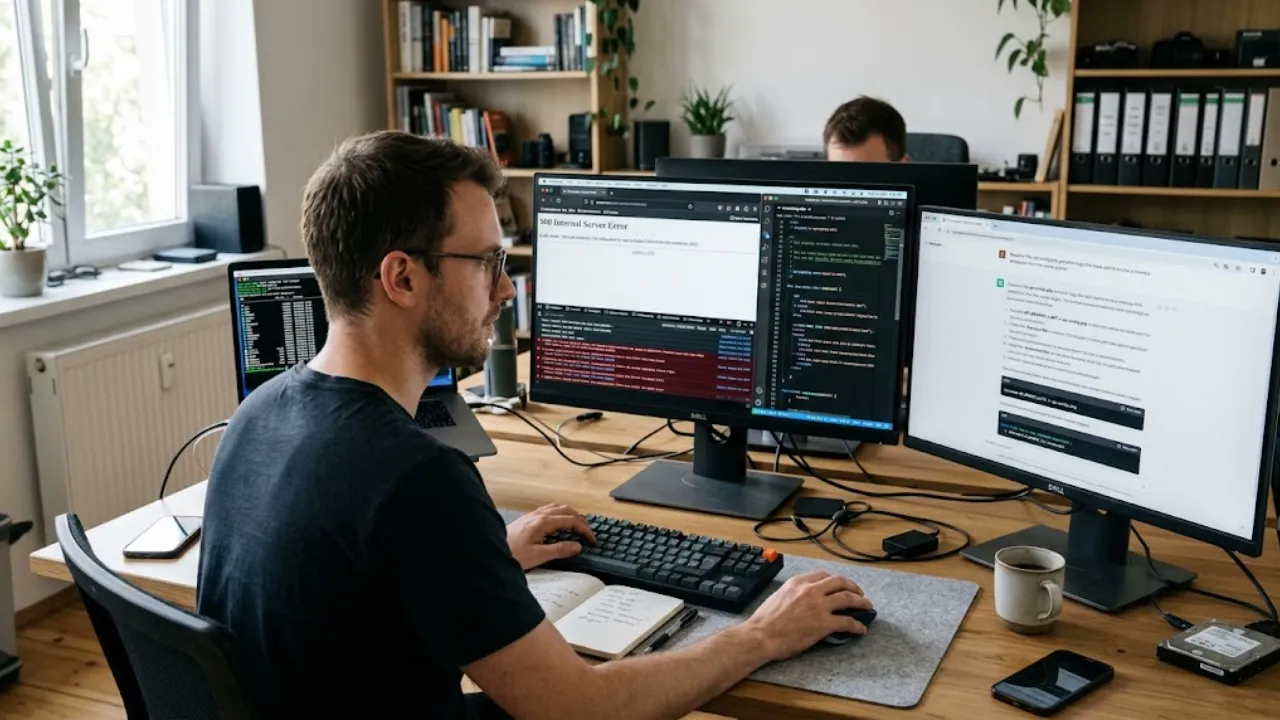
3. 500 Internal Server Error
Usual causes: a corrupted .htaccess file, a plugin or theme error, or PHP limits.
Safe fix order: rename .htaccess to .htaccess-old, then go to Settings → Permalinks and click Save to generate a fresh one; disable plugins as above; check the server error log in your hosting panel and ask AI to interpret it.
4. 404 errors on posts and pages
Usual causes: permalink rules not written, or content moved without redirects.
Safe fix order: Settings → Permalinks → Save Changes; if a URL changed, add a redirect with your SEO plugin or a redirection plugin.
5. Allowed memory size exhausted
Usual causes: a heavy plugin or a low PHP memory limit.
Safe fix order: ask AI which plugin appears in the error; raise the memory limit in wp-config.php with define( 'WP_MEMORY_LIMIT', '256M' ); if your host allows it, or ask your host to raise it; replace resource-heavy plugins.
6. Stuck in maintenance mode
Usual cause: an update was interrupted.
Safe fix order: delete the .maintenance file in your site’s root folder, then re-run the update that failed.
7. Too many redirects
Usual causes: conflicting HTTPS settings, wrong WordPress Address or Site Address, or cached redirect rules.
Safe fix order: clear browser cookies and cache; check Settings → General URLs both use https and the same domain; clear plugin and CDN caches; check for duplicate redirect rules in .htaccess or plugins.
8. Image upload failed
Usual causes: file permissions, file size limits or unsupported formats.
Safe fix order: try a smaller image; check the maximum upload size in Media → Add New; ask AI or your host about folder permissions for wp-content/uploads.
9. Can’t log in / login page refreshes
Usual causes: cookies, caching, a security plugin or wrong site URLs.
Safe fix order: clear cookies; try a private window; temporarily disable security or caching plugins via file manager; use the lost password link.
10. REST API, 401 or 403 errors
Usual causes: security plugins or firewalls blocking requests, a CDN or proxy stripping headers, or authentication problems.
Safe fix order: check Tools → Site Health for REST API warnings; test with security plugins disabled; ask your host whether a firewall or CDN is blocking or altering requests.
11. Mixed content warnings after moving to HTTPS
Usual cause: old http:// links to images or scripts.
Safe fix order: update the site URLs to https; use a search-and-replace tool (after a backup) to update old links; clear caches.
12. Plugin or theme update failed
Usual causes: timeouts, permissions or incompatible versions.
Safe fix order: check PHP and WordPress version requirements; retry; if the plugin is broken, delete and reinstall it from the official source, keeping settings where possible.
A real example from this site
While building Build With AI HQ, a script we wrote to publish articles through the WordPress REST API kept failing with a 401 error saying “You are not currently logged in”, even though the application password was correct. Instead of guessing, we tested the same request with a deliberately wrong username. WordPress returned exactly the same “not logged in” message, when a wrong username should produce a different error. That told us the login details were never reaching WordPress at all.
The response headers showed the site sat behind the host’s CDN, which was removing the Authorization header before requests reached WordPress. A common fix, adding a rewrite rule to .htaccess, did not help because the header was dropped earlier. The solution was to send credentials a different way that the CDN did not strip. The lesson: when an error message looks like a password problem, test your assumption. AI assistants are good at suggesting these diagnostic experiments if you describe exactly what you tried and what happened.
Prompts for WordPress troubleshooting
| Situation | Prompt |
|---|---|
| Unclear error | “Explain this error in plain English and list the three most likely causes: [error].” |
| Log file | “Which plugin or theme file is responsible in this debug log, and what should I try first? [lines]” |
| No dashboard access | “I can’t access wp-admin. I have a hosting file manager. Give me step-by-step instructions to disable plugins and switch theme safely.” |
| Code snippet | “Before I add this snippet to my theme, explain what each line does and any risks: [code].” |
| Performance | “My site got slow after installing [plugins]. How do I find which one is responsible without breaking the site?” |
| Diagnostic test | “What test could I run to confirm whether [suspected cause] is the problem, and what result would prove it?” |
When to stop and call your host or a developer
- You suspect a hack: unknown admin users, strange redirects, spam content or security warnings.
- The database is corrupted or the server itself is down.
- Fixes require server settings you cannot access, such as PHP modules or firewall rules.
- You are about to edit core files or run database commands you do not understand.
- It is an online store or membership site where downtime or data loss is costly.
How to prevent WordPress errors
- Keep WordPress, themes and plugins updated, and remove ones you do not use.
- Test major updates on staging first.
- Use reputable plugins that are actively maintained.
- Take automatic daily backups and check that you can restore them.
- Use a supported PHP version.
- Monitor uptime and check Tools → Site Health regularly.
- Keep a simple change log: what you changed and when, so you can link problems to causes.
Building a new site? Our guide to building a WordPress website with AI shows how to set things up cleanly, and how to use AI with WordPress covers everyday AI workflows.
The 7-step debugging method
Whatever the error, this sequence keeps you systematic and safe:
- Describe the symptom precisely: which pages, which users (logged in or not), which devices, and the exact message. “Checkout page shows a white screen for logged-out visitors on mobile” is far more useful than “site broken”.
- Find what changed: updates, new plugins, theme edits, hosting changes, DNS or CDN changes. Most errors follow a change. Your host’s activity log or plugin update history helps.
- Back up: before touching anything.
- Collect evidence: debug log, server error log, browser console errors (right-click → Inspect → Console) and Site Health information.
- Ask AI for ranked hypotheses: give it everything above and ask for likely causes with a test for each.
- Test one hypothesis at a time: disable one plugin, switch one setting, then check. Note results.
- Fix, verify and document: confirm the fix on the pages and devices where the problem appeared, then write down cause and solution for next time.
Reading an error log: an annotated example
Here is the kind of line you might find in debug.log (paths shortened):
PHP Fatal error: Uncaught Error: Call to undefined function example_helper()
in /wp-content/plugins/fancy-gallery/includes/render.php:42
Stack trace:
#0 /wp-includes/class-wp-hook.php(324): fancy_gallery_render()
#1 /wp-includes/plugin.php(205): WP_Hook->apply_filters()
...- “PHP Fatal error” means execution stopped, which is why you see a critical error or white screen.
- “Call to undefined function” means code tried to use a function that does not exist, often because a plugin depends on another plugin or on a newer or older version of PHP or WordPress.
- The file path points to the culprit: here, the “fancy-gallery” plugin, line 42.
- The stack trace shows the chain of calls that led there. The first lines inside
wp-content/pluginsorwp-content/themesusually matter most; lines insidewp-includesare WordPress core doing its normal job.
With this in hand, the fix is clear: deactivate that plugin, check for an update or a missing companion plugin, and contact its developer if needed. Paste lines like these into your AI assistant and it will walk you through the same reasoning.
Useful tools in your hosting panel
- Backups and restore: one-click restore points are the fastest fix when all else fails.
- File manager: rename plugin folders, edit .htaccess and wp-config.php, delete .maintenance.
- Error logs: server-level errors that do not appear in WordPress’s own log.
- PHP version switcher: test whether an error is caused by a PHP version change (switch back only as a temporary measure; plan to update the incompatible plugin).
- Staging: clone the site to test fixes safely.
- Cache and CDN controls: purge caches when changes do not appear, and check whether a CDN or firewall is blocking or altering requests.
- Database manager: for advanced fixes, with great care and a backup.
Ask your AI assistant to adapt instructions to your host’s panel by naming it: “I use [host] with hPanel/cPanel/Plesk; where do I find the error log?”
Checklist: what to collect before asking for help
- Exact error text and a screenshot.
- URL(s) where it happens, and whether logged-in or logged-out.
- WordPress, PHP and theme versions; list of active plugins (Tools → Site Health → Info can copy this).
- What changed just before the error.
- Relevant lines from debug.log and the server error log, with secrets removed.
- What you have already tried and what happened.
The same checklist makes support tickets with your host or plugin developer much faster to resolve.
Fixing front-end problems: layout, styling and scripts
Not every problem is a PHP error. Broken layouts, buttons that do nothing and styles that look wrong usually come from CSS or JavaScript, and AI is equally helpful here.
Check the browser console
Right-click the page, choose Inspect, and open the Console tab. Red messages such as “Uncaught TypeError” or “Failed to load resource” point to broken scripts or missing files. Copy them into your AI assistant along with the page URL and what you expected to happen.
Describe visual problems precisely
Instead of “the header looks weird”, say “on mobile, the menu button overlaps the logo and the logo text wraps onto two lines”. Include your theme name and a screenshot description. Ask for a CSS fix scoped to that element so it does not affect the rest of the site:
On my WordPress site using the [theme] theme, [describe problem, device, page].
Suggest a small CSS fix I can add to Appearance → Customize → Additional CSS.
Scope it to the specific element, explain each line, and tell me how to
test it on mobile and desktop.
Caching makes fixes look like they failed
After changing CSS or settings, clear your caching plugin, your host’s cache and any CDN, then reload in a private window. Many “it didn’t work” moments are simply cached pages.
Common front-end culprits
- Optimization plugins: combining or delaying JavaScript can break sliders, menus and forms. Exclude the affected script or turn the option off.
- Theme and page builder updates: custom CSS may target class names that changed.
- Conflicting plugins: two plugins loading different versions of the same library.
Frequently asked questions
Can ChatGPT fix my WordPress site?
It can diagnose problems, explain errors and give step-by-step fixes, but you or your host carry out the changes. Give it exact error messages and context for the best results.
Is it safe to paste wp-config.php into AI?
Only after removing the database password, security keys and salts. Replace them with placeholders.
What does “There has been a critical error on this website” mean?
A PHP fatal error stopped the page from loading, usually caused by a plugin, theme or PHP version conflict. Check the admin email for recovery mode and the debug log for details.
How do I disable plugins without wp-admin?
In your hosting file manager or FTP, rename the wp-content/plugins folder. WordPress will deactivate all plugins. Rename it back and reactivate them one by one to find the culprit.
How do I turn on WordPress debug mode?
Set WP_DEBUG and WP_DEBUG_LOG to true and WP_DEBUG_DISPLAY to false in wp-config.php, reproduce the problem, then read wp-content/debug.log. Turn it off afterwards.
Why does my WordPress site show a 500 error?
Common causes are a broken .htaccess file, a plugin or theme error, or PHP limits. Reset .htaccess, disable plugins and check the server error log.
Will AI-suggested code break my site?
It can if it contains mistakes. Understand the code, test on staging, back up first, and keep the original file so you can undo changes.