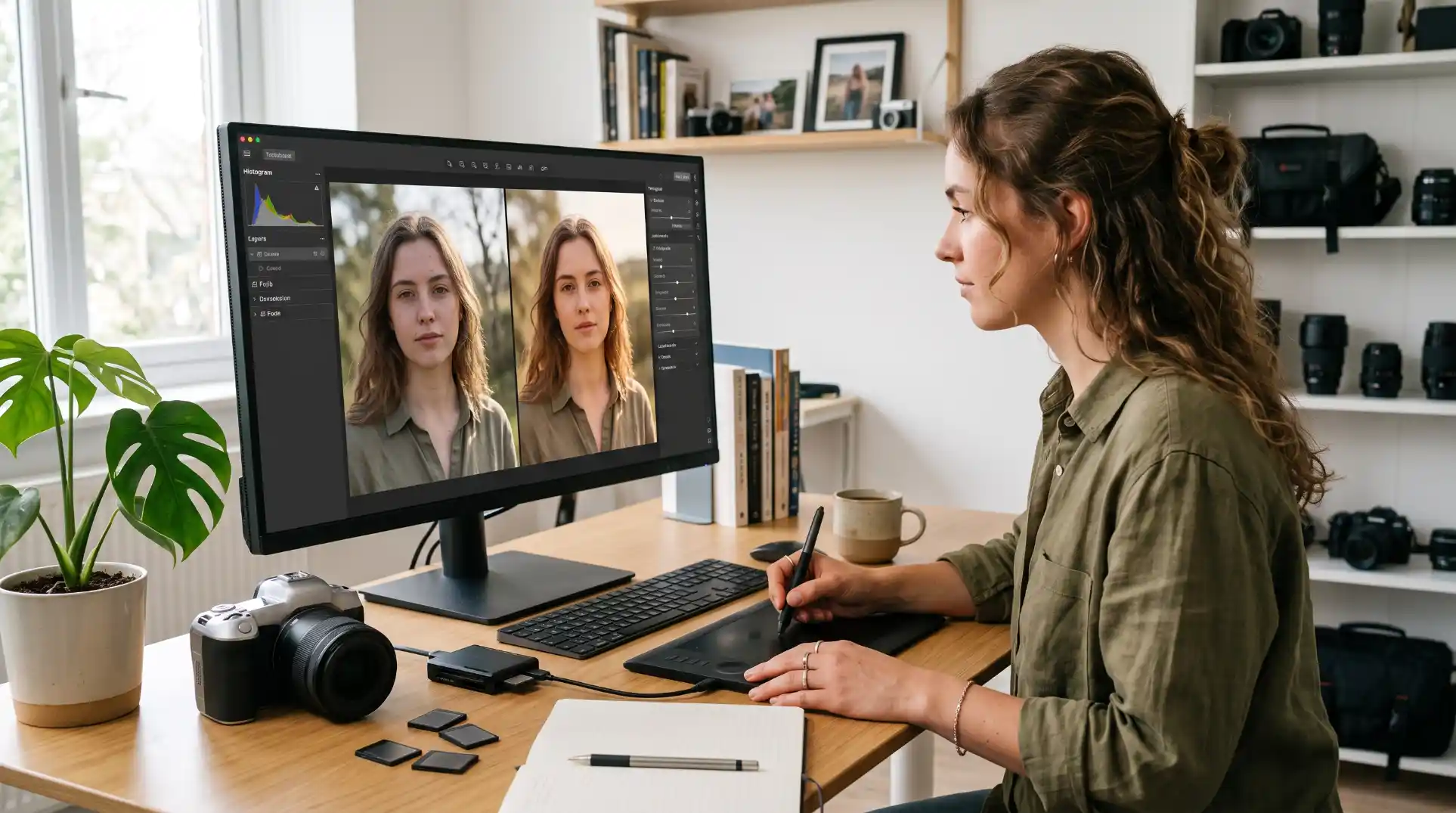
AI Photo Editing: Tools, Workflows and Tips
Quick answer: AI photo editing uses machine learning to handle tasks that used to take careful manual work: removing backgrounds and objects, extending a photo’s edges, fixing lighting, reducing noise, sharpening, upscaling and making changes from a text description. Popular tools include Adobe Photoshop and Lightroom, Canva, Google Photos, Gemini and ChatGPT’s image editing, Photopea and dedicated apps such as remove.bg or Topaz. For most people, a free phone editor plus one browser tool covers everyday needs.
Key takeaways
- Generative fill, remove and expand are now standard in major editors, including free ones.
- Chat-based editors (Gemini, ChatGPT) let you edit by describing changes in plain language.
- Classic AI adjustments such as denoise, sharpening and auto-masking keep photos realistic.
- Product and real-estate photos must stay accurate: never misrepresent what you sell.
- Check privacy terms before uploading personal or client photos to online tools.
- Always review edits at full size; AI can add strange details in the areas it changes.
What can AI photo editing do?
| Task | What AI does | Common tools |
|---|---|---|
| Background removal | Detects the subject and cuts it out automatically | Canva, remove.bg, Photoshop, Adobe Express, phone apps |
| Object removal | Erases distractions and fills the space realistically | Google Photos Magic Eraser, Photoshop Generative Remove, Lightroom, Canva Magic Eraser |
| Generative fill | Adds or replaces elements from a text prompt | Photoshop, Canva Magic Edit, Gemini, ChatGPT |
| Generative expand (outpainting) | Extends the canvas beyond the original edges | Photoshop, Canva Magic Expand, Firefly |
| Auto-masking | Selects sky, subject, people or background in one click | Lightroom, Photoshop, Luminar Neo |
| Denoise and sharpening | Cleans up low-light noise and softness | Lightroom Denoise, Topaz Photo, DxO |
| Upscaling | Increases resolution while rebuilding detail | Photoshop Super Resolution, Topaz, Upscayl, Let’s Enhance |
| Relighting and color | Adjusts lighting direction, color grading and white balance | Lightroom, Luminar Neo, phone editors |
| Portrait retouching | Smooths skin, fixes blemishes, adjusts eyes and teeth | Lightroom, Photoshop neural filters, mobile apps |
| Photo restoration | Repairs scratches, colorizes and sharpens old photos | Photoshop neural filters, MyHeritage-style tools, Remini |
| Combining images | Merges a subject into a new scene with matched light | Photoshop, Gemini, ChatGPT, Firefly |
| AI headshots | Creates professional-style portraits from selfies | Dedicated headshot apps, Canva and others |
The best AI photo editors by type
Adobe Photoshop
Photoshop remains the most powerful option for detailed editing. Its Firefly-powered tools include Generative Fill (add or replace content with a prompt), Generative Expand, Generative Remove, neural filters and advanced selection tools. Because edits happen in layers, you can refine or undo AI changes precisely. It is paid, with a subscription.
Adobe Lightroom
Lightroom is built for photographers who edit many images. AI features include one-click subject and sky masking, adaptive presets, Denoise and Generative Remove, combined with library tools for organizing and batch editing whole shoots.
Canva
Canva’s AI photo tools, including background remover, Magic Eraser, Magic Edit and Magic Expand, sit next to templates and text tools. It is the easiest choice for social media, blog graphics and marketing materials. Some AI features require Canva Pro.
Google Photos
On phones, Google Photos offers Magic Eraser, Magic Editor and other AI edits, with some features limited on free accounts. It is a convenient free starting point for everyday photos.
Gemini and ChatGPT
Chat-based editors let you upload a photo and describe changes: “replace the background with a bright studio”, “make it look like golden hour”, “remove the person on the left”. They are fast and beginner-friendly, but may change details you did not ask to change, so compare the result carefully with the original.
Free and low-cost alternatives
- Photopea: a free browser editor similar to Photoshop, useful for layers and manual fixes.
- GIMP: free desktop editor with plugins.
- Upscayl: free desktop AI upscaler.
- Phone editors: Apple Photos, Samsung Gallery and Google Photos include AI object removal on supported devices.
Step-by-step AI photo editing workflows
Workflow 1: Product photo for an online store
- Shoot well: use daylight or a softbox, a plain background and a steady phone or camera. AI cannot fully fix a blurry, badly lit photo.
- Remove the background: use a background remover to isolate the product.
- Place it on a clean background: white or light grey for marketplaces, or a simple lifestyle scene for your own site.
- Add a natural shadow: a soft shadow under the product stops it looking pasted in.
- Correct color: check that the product’s color matches the real item under neutral light.
- Export: square or 4:5 for shops and social, compressed WebP or JPEG for the web.
Rule for sellers: edit the scene, not the product. Do not change the product’s shape, color, size or condition. Misleading product images lead to returns, bad reviews and possible legal trouble. See building an online store with AI.
Workflow 2: Removing distractions from a travel photo
- Open the photo in Google Photos, Lightroom, Photoshop or Canva.
- Brush over the distraction: a stranger, a trash can, a power line.
- Let the AI fill the area, then zoom in to check edges, repeated patterns and shadows.
- Repeat for other small distractions, working on one area at a time.
- Finish with light color and exposure adjustments.
Workflow 3: Blog header from an existing photo
- Start with your own photo, which adds genuine experience to your post.
- Use generative expand to widen it to 16:9 and create space for a headline.
- Remove clutter, then adjust brightness and color to match your site’s style.
- Add text in Canva or Figma with your brand font.
- Export at around 1,200–2,000 pixels wide in WebP and write descriptive alt text.
Workflow 4: Restoring an old family photo
- Scan the photo at high resolution (or photograph it flat in even light).
- Use a restoration tool to fix scratches, dust and tears.
- Apply gentle sharpening and noise reduction.
- Try colorization if you like, but keep the original black-and-white version too.
- Check faces carefully: restoration tools can change features, making relatives look like different people.
How to edit photos with Gemini or ChatGPT
Chat-based editing is the easiest way to start. Upload a photo and give clear, specific instructions:
Replace the background with a clean, light grey studio background.
Keep the person, their clothes, hair and pose exactly the same.
Add a soft, natural shadow on the floor. Do not change their face.

Make this photo look like it was taken at golden hour: warmer light
from the left, slightly longer shadows. Do not add or remove objects.

Remove the two people walking in the background on the right.
Fill the area with matching street and buildings. Keep everything else unchanged.
Tips: ask for one change at a time, repeat “keep everything else the same”, and compare the result with the original at full size. If the tool keeps altering faces or products, switch to a mask-based editor like Photoshop, Canva or Photopea for precise control. For more prompt ideas, see AI image prompts.
AI headshot generators: what to know
AI headshot tools turn a set of selfies into professional-looking portraits for LinkedIn, team pages or author bios. They can save money and time, but consider:
- Accuracy: results can look like an idealized version of you. For professional profiles, choose images that clearly look like you today.
- Privacy: you are uploading facial photos. Read how the service stores, uses and deletes them, and whether they are used for training.
- Consent: only upload photos of yourself, or of others with their clear permission.
- Company rules: some employers and publications require real photos.
For an author page, a real photo taken with a phone in good window light is often more trustworthy than a polished AI portrait. See how to write an About page with AI.
Ethics: where AI photo editing crosses a line
AI makes it easy to change reality in photos. Most edits are harmless, but some are not:
| Generally fine | Be careful or avoid |
|---|---|
| Removing clutter from your own vacation photo | Removing or adding people in news, legal or documentary photos |
| Improving lighting and color on product photos | Changing a product’s appearance, size or condition |
| Replacing a boring background for a blog image | Real-estate photos that hide defects or invent features |
| Gentle portrait retouching with consent | Editing other people’s bodies or faces without consent |
| Restoring old family photos | Presenting heavily edited images as untouched evidence |
| Creative composites clearly presented as art | Realistic fake images of real people or events |
Some platforms and advertising rules require disclosure of significantly edited or AI-generated images, and some industries (journalism, real estate, advertising) have their own standards. When in doubt, disclose. Keep any Content Credentials that editing tools add, as they record how an image was changed.
Privacy tips for AI photo editing
- Read the terms: check whether uploads are stored, for how long, and whether they are used to train models.
- Prefer on-device tools for sensitive photos: some phone editors process edits on the device.
- Remove metadata when sharing publicly: photos may contain location data (GPS) in their EXIF metadata.
- Be careful with children’s photos: avoid uploading them to unknown apps.
- Client work: get permission before uploading client images to third-party AI services.
Common AI photo editing problems and fixes
| Problem | Fix |
|---|---|
| Blurry or smeared fill after object removal | Select a smaller area, work in steps, or clone manually |
| Repeated patterns in filled areas | Regenerate, or break up the pattern with a manual touch-up |
| Hair edges look cut out after background removal | Use a refine-edge or hair-detail option, or a better source photo |
| Subject looks pasted into a new background | Match light direction and color, add a soft shadow |
| Faces changed after a chat edit | Ask to keep the face unchanged, or use mask-based editing |
| Plastic-looking skin | Reduce smoothing strength; keep natural texture |
| Artifacts after upscaling | Use a lower “creativity” setting or a different upscaler |
| Colors look different on phone vs computer | Export in sRGB and check on several screens |
For problems in fully AI-generated images, such as hands and garbled text, see how to fix AI image problems.
Choosing the right AI photo editor
| You are… | Good choice |
|---|---|
| A beginner editing phone photos | Google Photos or your phone’s built-in editor |
| A blogger or small business making graphics | Canva, plus Gemini or ChatGPT for quick edits |
| A photographer editing whole shoots | Lightroom, with Photoshop for complex edits |
| A designer doing composites | Photoshop with Firefly tools |
| On a zero budget with a computer | Photopea, GIMP and Upscayl |
| Selling products online | A background remover plus Canva or Photoshop for scenes and shadows |
Photo basics that make AI editing work better
AI editing is most effective when the original photo is decent. A few habits save a lot of fixing later:
- Light: shoot near a window or outdoors in shade. Soft, even light is easier for AI to extend and relight convincingly.
- Focus: tap to focus on the subject; AI sharpening cannot fully rescue a badly out-of-focus image.
- Space around the subject: leave room at the edges so you can crop or expand without cutting off hands, heads or products.
- Plain backgrounds for products: clean edges make background removal much more accurate.
- Highest quality settings: shoot at full resolution; for serious editing, use RAW if your phone or camera supports it.
- Keep originals: always edit a copy, so you can return to the untouched file.
Batch editing with AI
If you edit many photos, such as a product catalog or an event, look for batch features:
- Presets and adaptive presets: apply a consistent look across many photos, with AI adjusting for each subject.
- Batch background removal: several tools can remove backgrounds from dozens of product photos at once.
- Sync settings: edit one photo, then copy the settings to similar shots.
- Automation: image APIs and automation tools can resize, compress and rename files as they are uploaded; see building automations with n8n.
Spot-check a sample from every batch. Automated edits usually work, but the occasional failure, such as a cut-off product edge, is easy to miss.
AI photo editing for specific jobs
Social media
Crop to the right format first (4:5 for Instagram feed posts, 9:16 for stories and reels, 1.91:1 or 16:9 for link previews), then use generative expand if the subject is too tight. Keep edits natural; heavily filtered images can look less trustworthy, especially for businesses. Canva templates help keep a consistent look.
Real estate and rentals
AI can brighten rooms, straighten verticals, replace a grey sky and remove temporary clutter. Virtual staging, adding furniture to empty rooms, is common but should be labeled as virtually staged. Never hide damage, remove permanent features such as power lines or neighboring buildings, or add features the property does not have. Many listing platforms and local rules require accurate photos.
Events and portraits
Use AI denoise for low-light event photos, auto-masking to brighten faces, and gentle retouching. Ask before heavily retouching people, and keep natural skin texture. For group photos, AI tools can sometimes fix closed eyes by combining frames, but check results carefully.
Blog and tutorial screenshots
For tutorials, AI is useful for blurring private information, removing notification clutter and upscaling small screenshots. Do not alter what the screenshot shows about how a product works, because readers rely on it being accurate.
For prints, upscale carefully to the size you need, check sharpness at 100%, and convert colors as your print service recommends. Artifacts that are invisible on a phone can be obvious on a large print.
A simple quality checklist before you publish
- Compared with the original at full size
- No smeared, repeated or warped areas where AI filled or removed content
- Edges of cut-out subjects look natural, including hair
- Light and shadows match across the image
- Products, properties and people are represented honestly
- Location metadata removed if the photo is personal
- Right size and format for where it will appear
- Alt text written; AI edits disclosed where required
Traditional editing skills still matter
AI tools handle the tedious parts, but a few traditional skills make every edit better and help you spot when AI gets it wrong:
- Exposure and contrast: understand highlights, shadows and midtones so you can correct AI adjustments that go too far.
- White balance: know when a photo looks too blue or too orange, and fix it before applying other edits.
- Composition and cropping: the rule of thirds, leading lines and clean edges improve a photo more than any filter.
- Masks and layers: in Photoshop, Photopea or GIMP, masks let you limit AI changes to exactly the right area and undo them later.
- Restraint: the best edits are often invisible. If people notice the editing before the subject, pull it back.
Learning these basics takes a few hours of practice and makes you far more effective with AI tools, because you will know what a good result looks like and how to get there.
The bottom line
AI photo editing has made professional-looking results accessible to almost anyone. Start with a good original photo, choose the tool that fits the job, make one change at a time, and check every edit at full size. Above all, keep your edits honest: improve how a photo looks without changing what it truthfully shows.
Glossary of AI photo editing terms
- Generative fill: adding or replacing content in a selected area from a text prompt.
- Generative expand (outpainting): extending an image beyond its original borders.
- Inpainting: regenerating part of an image inside a mask.
- Mask: a selection that limits where an edit applies.
- Denoise: reducing grain from low-light or high-ISO photos.
- Upscaling: increasing resolution while rebuilding detail.
- Content Credentials: metadata that can record how an image was created and edited.
- EXIF: photo metadata such as camera settings, date and sometimes GPS location.
Getting started today
Pick one photo you actually need, such as a product shot, a blog header or a profile picture, and run it through one of the workflows above using a free tool. Note which steps took longest and which results you had to redo. After three or four photos, you will know which tool deserves a place in your routine and whether a paid editor would save you meaningful time.
Frequently asked questions
What is the best AI photo editor?
Adobe Photoshop is the most powerful for detailed work, Lightroom is best for photographers editing many images, Canva is easiest for social and marketing graphics, and Google Photos is a strong free option on phones. Gemini and ChatGPT are convenient for quick edits described in plain language.
Is there a free AI photo editor?
Yes. Google Photos, phone built-in editors, Canva’s free plan, Photopea, GIMP, Upscayl and the free tiers of Gemini and ChatGPT all offer AI editing features, with some limits.
How do I remove a background from a photo with AI?
Upload the photo to a background remover such as Canva, Adobe Express, remove.bg or Photoshop’s remove background tool. The AI detects the subject automatically; refine edges around hair if needed, then add a new background and a soft shadow.
How do I remove an object from a photo?
Use an object-removal tool such as Google Photos Magic Eraser, Photoshop Generative Remove, Lightroom or Canva Magic Eraser. Brush over the object, let the AI fill the area, then zoom in to check the result.
Can ChatGPT edit photos?
Yes. You can upload a photo to ChatGPT and describe the changes you want. Check the result carefully, since chat-based edits can alter details you did not ask to change, such as faces or text.
Are AI headshots worth it?
They can be convenient, but results may not look exactly like you, and you must upload facial photos. For professional profiles, a real, well-lit photo is often more trustworthy. If you use an AI headshot service, read its privacy terms first.
Is it okay to use AI-edited photos for product listings?
Yes, for improving backgrounds, lighting and presentation, as long as the product itself is shown accurately. Changing a product’s appearance, size or condition misleads buyers and may break marketplace rules.
Does AI photo editing reduce image quality?
It can, if edits are overused or files are recompressed many times. Edit from the original file, apply AI effects moderately, check at full size and export once at the right quality.